Initial Set Up
1. Select Country or Region > US > Yes
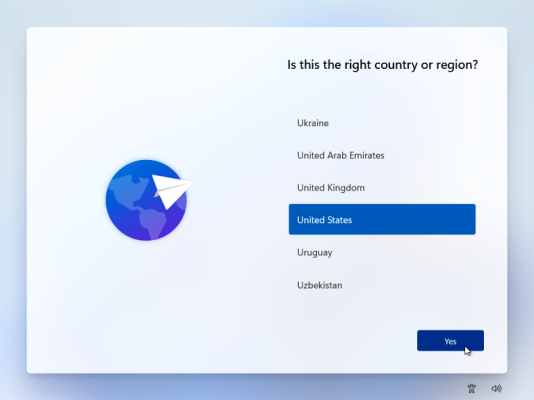
2. Select right Keyboard > US > Yes

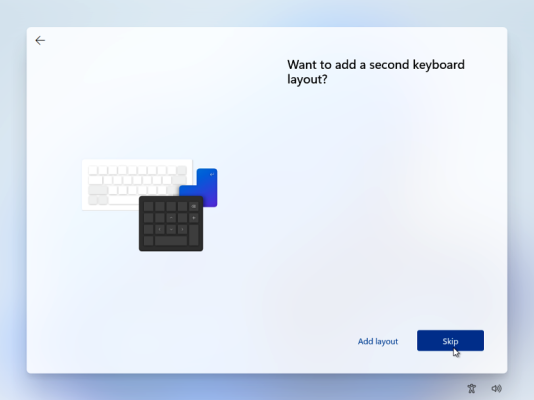
3. Want to add a second keyboard layout > Skip
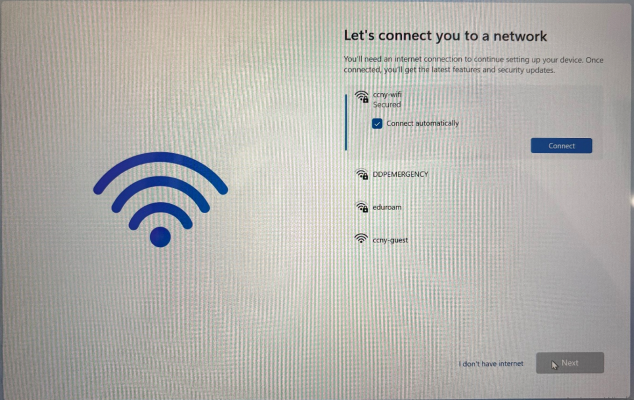
4. Let’s connect to you to a network > select ccny-wifi > enter CCNY login credentials > Connect > Next
5. Your PC will restart before you continue

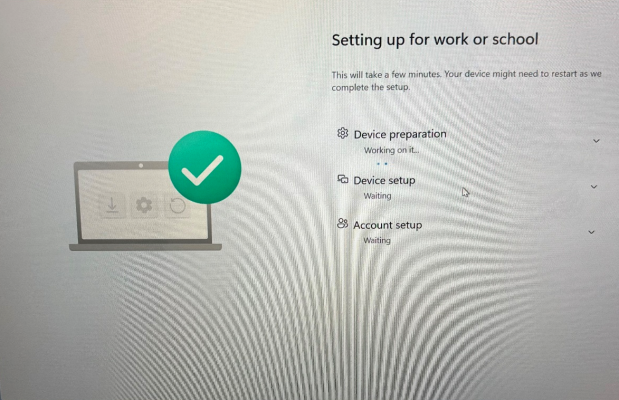
6. Let’s set things up for your work or school > Enter CUNY Login credentials ( first.last##@login.cuny.edu ) > Next

7. Enter CUNY Login credentials ( %66i%72st.last#%23@login.cun %79.edu" rel="nofollow"> first.last##@login.cuny.edu ) > Log in

8. Enter two-digit code shown on computer to your Authenticator app on your mobile device

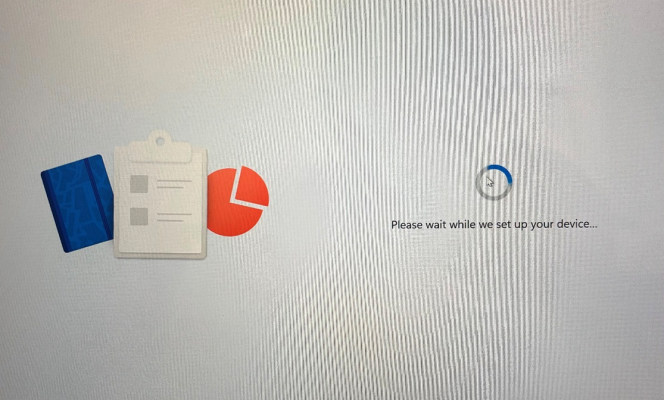
9. Your laptop will beginning set up
10. After another restart, your laptop will ask if you would like to set up a pin. You may select Skip or Next to set a pin, the pin must have a minimum of six digits
11. You will then be able to login to the laptop using your CUNY login credentials


Last Updated: 08/03/2026 12:30