To access CUNY email system across all campuses. All university emails can be accessed using the CUNY Login ( firstname.lastnameXX@login.cuny.edu ), same as the CUNYfirst Login credentials.
Click below to access new mailbox

All messages are delivered to one unified inbox, making it easier to stay connected. We encourage you to review important details, access instructions, and support resources on this page, see FAQs below.
How to send emails from new mailbox
1) To send, forward, and reply from any of the college or CUNY email addresses.

2) The default send from email address is the preferred email address in CUNYfirst.
3) If an expected email address is missing
- Log into Outlook via browser > Go to Settings > Mail > Compose and reply
- Make sure there is a checkbox next to the addresses you want to send from
- If an expected email address is missing email servicedesk@ccny.cuny.edu

IMPORTANT: The @stu-mail.ccny.cuny.edu and @cuny.edu CANNOT be used to access your mailbox. To access new mailbox, login using CUNY Login credentials, same credentials as CUNYfirst.
CUNY LOGIN CREDENTIALS is the same as the CUNYfirst Login credentials
Two new email addresses and one CUNY login, to access CUNY and CCNY applications
1. New CCNY address: CCNY student‑facing address and is ideal for communicating with instructors, campus offices, classmates, and other CCNY community members.
firstname.lastname##@stu-mail.ccny.cuny.edu
(Example:
jane.doe99@stu-mail.ccny.cuny.edu
)
2. New University email address: This address represents your official University‑wide student identity and will be used by many CUNY systems and services.
firstname.lastname##@cuny.edu
(Example:
jane.doe99@cuny.edu
)
3. Current CUNY login: This address serves as your main CUNY service account and will be the username you use to sign into Outlook, Teams, OneDrive, and all Microsoft 365 applications as well as CUNY applications
firstname.lastname##@login.cuny.edu
(Example:
jane.doe99@login.cuny.edu
)
Setting Up Microsoft 365 MFA (Microsoft Applications)
CUNY and CCNY have implemented Multi-Factor Authentication (MFA) for CUNY Login, CUNY Office 365, and CCNY applications. This added layer of security helps protect both your data and CUNY’s and CCNY’s data from potential cyberattacks.
While the experience will feel similar to the existing Citymail MFA, users must complete this setup specifically for their new email account: @stu-mail.ccny.cuny.edu. Having MFA for Citymail does not automatically cover this new mailbox.
The following one-time procedure provides instructions on setting up CUNY Login MFA TOTP (Time-based One-Time Password) for use with the Microsoft Authenticator mobile app when you have access to a computer as well as your phone.
1. On your desktop open up a New Private Window:
- Firefox: Click on the top right click on the 3 horizontal lines > Click New Private Window >Copy following link paste into the address bar login.microsoftonline.com
- Chrome: Click on the top right click on the 3 dots > Click New Incognito Window >Copy following link paste into the address bar login.microsoftonline.com
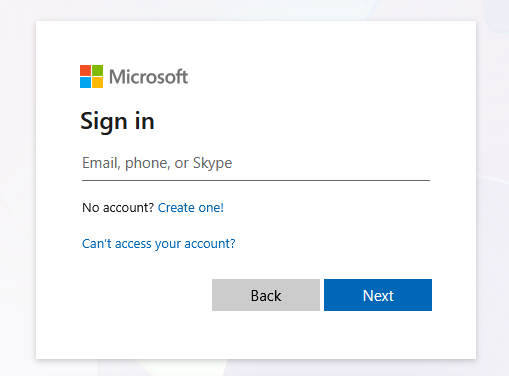
2. The Microsoft Sign in page opens up, enter CUNY email login credentials ( firstname.lastname##@login.cuny.edu ), click Next
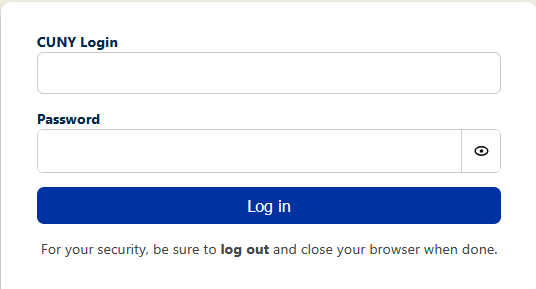
3. The CUNY Login page will open up, enter CUNY login username and password
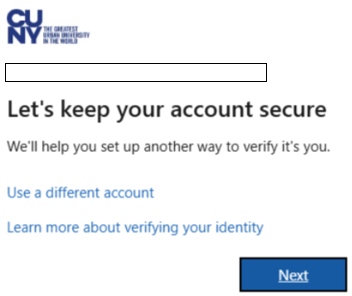
4. Let’s keep you account secure, click Next
On your mobile device
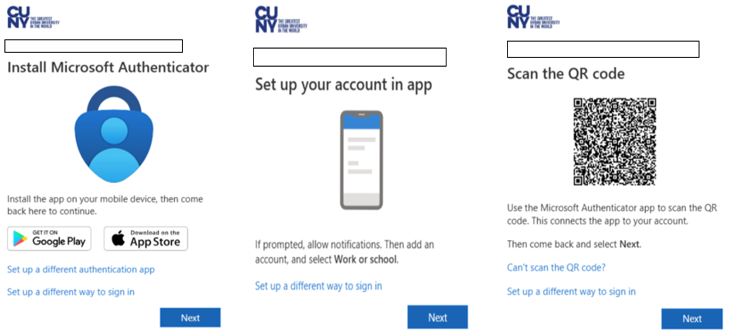
5. If you haven’t, install Microsoft Authenticator on your mobile device, click Next
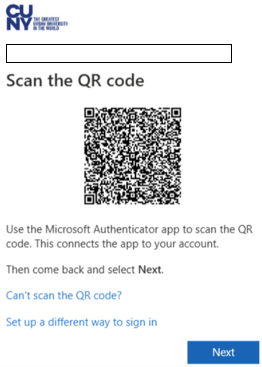
Set up account in app, click Next to get QR code image
6. Open the Microsoft Authenticator app on your mobile device > click the plus (+) sign top right corner
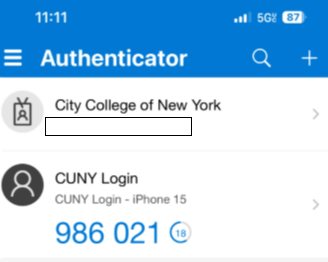
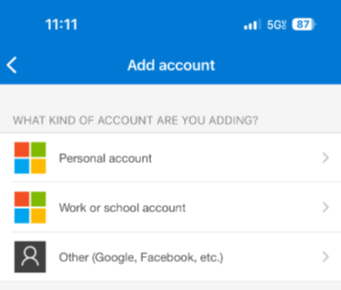
7. Click Work or school account
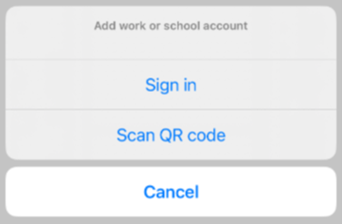
8. Click Scan QR code
9. With your mobile device, scan QR code shown on computer screen, click Next
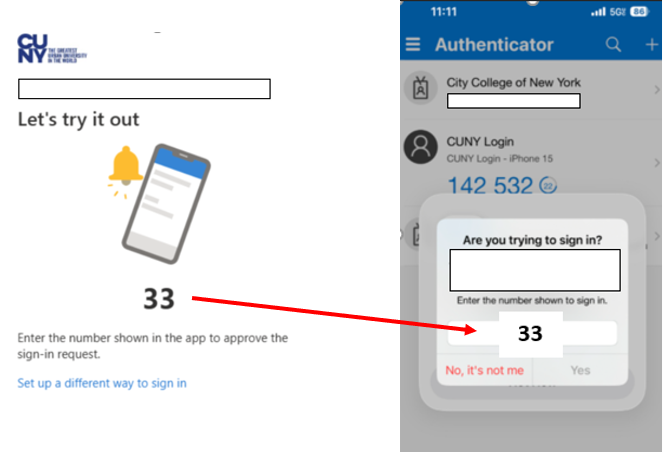
10. Enter two digits # shown on computer screen, to the Authenticator app on mobile device, click Yes
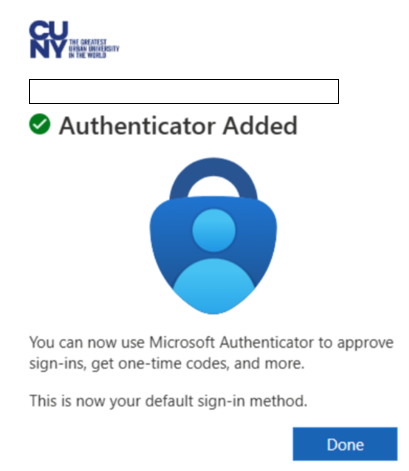
11. Click Done on computer screen
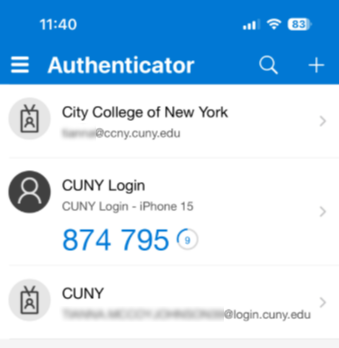
12. On your device the account will be listed as CUNY and your CUNY login username will be displayed at the bottom
Frequently Asked Questions
How will I access my new mailbox on or after April 13, 2026?
Go to https://outlook.live.com/mail/0/ and sign in using your CUNY Login credentials (
firstname.lastname##@login.cuny.edu
).
What will happen to my current @citymail.cuny.edu mailbox?
@citymail mailboxes will remain accessible for a period to assist with the transition.
Will I be able to change my preferred email address in CUNYfirst?
Your preferred email in CUNYfirst will be updated to your college-branded address. You may choose a different CUNY-associated address as your preferred address, but not an external one.
What will happen to my email address if I make a preferred name change?
Your CUNYfirst login will change when the name change takes effect. According to CUNY, your mailbox/email alias will update automatically.
Will I have to migrate my historical email from the @citymail mailbox to the new mailbox?
- Based on the CUNY CIS Email Migration Policy, the migration of your historical email from your @citymail mailbox depends on your activity within the nine months prior to April 13, 2026.
- Eligible for Migration: Legacy mailboxes that have been active (i.e., accessed or used) within the nine months prior to April 13, 2026, will have their email data automatically migrated.
- Not Eligible for Migration: Legacy mailboxes that have not been used during those nine months will not have their email data migrated automatically.
Will an out-of-office message or forwarding of email be applied to my legacy mailbox?
An out-of-office reply message and email forwarding will be applied to your legacy mailbox.
What will happen to my @citymail.cuny.edu OneDrive account?
Students will receive a new OneDrive account with their new mailbox. Students will need to transition the content in their legacy OneDrive account to their new OneDrive account.
What if I have multiple campus affiliations?
Email sent to any of your CUNY email addresses will be delivered to your new mailbox.
What if I am a student and a CUNY employee?
You will have one CUNY mailbox. CCNY IT recommends that you create folders and rules within your mailbox to manage your different types of email (student versus employee).
Will my CCNY network credentials be impacted?
No. This transition will have no impact on your local CCNY network credentials.
What if I use my @citymail.cuny.edu email address as a login or contact at external organizations?
CCNY IT recommends you update that information as soon as the transition takes place (on or after April 13, 2026).
What will happen to alumni @citymail.cuny.edu email accounts?
- Legacy alumni accounts are not transitioning. Alumni email addresses will remain the same.
- Alumni will need to actively use their accounts to retain them. After twelve months of inactivity, alumni accounts will be deleted by CUNY CIS.
- Alumni accounts will be email-only after April 13, 2026. Their OneDrive access will be removed. Alumni should begin migrating any OneDrive data they wish to retain now. They will not be able to access the OneDrive account as of April 13, 2026.
I am a Mac user; how do I configure my device?
The following instructions will assist you Outlook for Mac
I've already accessed Outlook in Microsoft 365 and noticed not all of my email is there. Is some of my email lost?
Your email will not be lost. The Office of Information Technology began transferring email a few weeks in advance of the transition. After the transition is complete, the rest of your email will be transferred to your Microsoft 365 account.
Will all our calendar appointments be transferred?
Yes, calendar appointments will be transferred as well.
Will shared/departmental email accounts be transferred and remain available?
Yes, shared or departmental email accounts are being transferred to Microsoft 365 with the corresponding permissions - you will not need to do anything.
Will the rules I’ve set up in my inbox transfer as well?
No, rules will not be transferred. You'll need to recreate any rules you've created in your old email account.
What is the size limit for email attachments in Microsoft 365?
The size limit for attachments is 35 MB.
Will I still be able to use mail merge?
Yes, to send emails to a large number of recipients, senders can use mail merge functionality with content from Microsoft Word.
Why do I need to set up Microsoft MFA?
Microsoft multi-factor authentication (MFA) provides additional security and privacy when using CUNY Login credentials to access Microsoft 365 applications. Although similar to the CUNY Login MFA used when logging into other CUNY and college applications like CUNYfirst and Brightspace, Microsoft MFA is only used when accessing your new CUNY email account and Microsoft 365 applications.
How do I set up Microsoft MFA?
For information on setting up your Microsoft multi-factor authentication (MFA), see CUNY Microsoft Login MFA Set Up.
What email information will CUNY copy to my new CUNY email account?
If CUNY copies the content from your old college-based email account to your new CUNY email account, the following information will be copied:
- Emails: All email content, including folder structure and attachments.
- Calendars: Events, attendees, and recurrence patterns.
- Contacts: User contact information.
- Email Rules: Mail redirects, blocking rules, and other mailbox rules.
- Auto-reply Settings: Out-of-office replies and other automatic response configurations.
- Time Zones: Preserves the correct time zone settings for the mailbox.
What is Not Copied (Limitations):
- Encrypted Emails: Cannot be detected and are migrated unreadable.
- Folder Permissions: Permissions for folders are not preserved during the migration.
- Reference Attachments: Links to documents on OneDrive (like OneDrive for Business) are not preserved.
- Scheduled Emails: Future-scheduled emails are copied as drafts, not with their scheduled send time.
How will I find the email copied or forwarded to my new CUNY Email account?
Email automatically forwarded from your old college account to your new CUNY email account will have “FWD” in the subject line and be addressed to your
cunylogin@cuny.edu
email address.
If you have multiple college affiliations, it may be helpful to set up a separate folder for each college email address and establish rules in your new CUNY email account to automatically move auto-forwarded messages into the corresponding college folder. See Managing Multiple Email Addresses on this SharePoint site and Set up rules in Outlook on the Microsoft website for more information.
How do I move content from my old college email account to the new CUNY email account?
The contents of your old, college-based email account will be copied to your new CUNY email account sometime after you return from Spring Break 2026.
If you need specific content from your old, college-based email account in your new CUNY email account sooner, you can forward messages as required.
Sync email to your mobile device
iOS: Settings > Mail > Mail Accounts > Add Account > Enter Email
Android: Settings > Accounts > Add Account > Outlook > Enter Email
Getting Help


Last Updated: 07/15/2026 16:13