How to access CUNY email
To access the new CUNY mailbox, login via outlook.office.com or by clicking the Outlook icon below, enter CUNY Login ( first.last##@login.cuny.edu ).

All messages are delivered to one unified inbox, making it easier to stay connected. We encourage you to review important details, access instructions, and support resources on this page, see FAQs below.
How to send emails from new mailbox
1) To send, forward, and reply from any of the college or CUNY email addresses.
Note: You will be able to select @ccny.cuny.edu to send emails once you login to the new mailbox.

2) The default send from email address is the preferred email address in CUNYfirst.
3) If an expected email address is missing
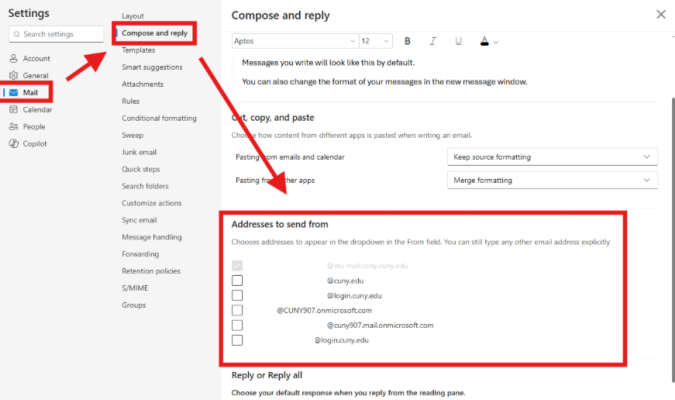
- Log into Outlook via browser > Go to Settings > Mail > Compose and reply
- Make sure there is a checkbox next to the addresses you want to send from
- If an expected email address is missing email servicedesk@ccny.cuny.edu
One new email address and one CUNY login, to access CUNY and CCNY applications
1. New CUNY email address: will be added to your mailbox. You will be able to send and receive using this email address just as you would for your existing email address(es). first.last##@cuny.edu (Example: jane.doe99@cuny.edu )
2. Current CUNY login: This address serves as your main CUNY login service account and will be the username you use to sign into Outlook, Teams, OneDrive, and all Microsoft 365 applications as well as CUNY and some CCNY applications. first.last##@login.cuny.edu (Example: jane.doe99@login.cuny.edu )
CUNY Email Migration - Info Session FAQ (July 21 and July 23)
CUNY Email Migration Info-Session <PDF>
Will employees be able to use their @ccny.cuny.edu address to log in?
We are waiting to hear back from CUNY if they will enable log in with alternative domains. As of this moment this feature is disabled.
Will employees retain access to their @ccny.cuny.edu mailbox?
Once migrated the @ccny.cuny.edu mailbox will be accessible from the CUNY tenant. The old mailbox will not be accessible.
How will the migration affect emails sent to employees' @ccny.cuny.edu addresses?
The migration will not affect delivery of email during or after the transfer.
If a user has a rule that automatically downloads emails to a local desktop, will that rule continue to work after migration, or will it need to be recreated?
As of now rules are that hosted on Outlook Web will be transferred over to the new email system.
Will email archives, including older archives such as Pelican, be migrated to the CUNY email system?
The main mailbox will be migrated first. The archive will be migrated at a later time. If your mail was transferred from pelican and is still in your mailbox now, it will be transferred over.
Will Proofpoint continue to work with the new CUNY email system? If so, will its functionality change?
Proofpoint will continue to work with the new email system and you will continue to receive digests.
Will OneDrive files associated with an @ccny.cuny.edu account be migrated to the CUNY environment?
There is currently no OneDrive associated or enabled with the ccny.cuny.edu domain. There will be nothing to transfer over to CUNY.
Will employees retain access to their CUNY email after retirement?
Existing Retiree guidelines will be followed in which form is filled by HR to either grant a @ret.ccny.cuny.edu address or the keeping of existing address.
Will current retirees be migrated to CUNY email, or will they retain their legacy email accounts?
Need clarification from CUNY if folks marked as retired were included in migration list. Some of the folks that were allowed to keep their addresses are on list and some are not.
What will the storage limit be for CUNY email? Will it be larger or smaller than the current CCNY limit?
100 GB
Will employees who currently use tokens be able to use them with CUNY email?
Yes, tokens have already been sent to CUNY for registration. Please reach out to service desk if you encounter issue.
What are CCNY credentials used for?
Will be used for Wi-Fi and computer login on campus.
Will other CCNY web applications be migrated to CUNY Single Sign-On (SSO)?
Most applications have been migrated already. If you see an application that you would like to migrate let us know.
Will I be able to send an email from my CCNY address after the migration?
Yes. After the migration, you will be able to send email from your CCNY address. Your CCNY address will be used as an alias.
Will Microsoft Teams replace Zoom?
No. You will continue to have access to both Teams and Zoom.
Will the Outlook calendar merge with the Teams calendar?
Yes.
Which email rules will be transferred during the migration?
Only the rules that appear in Outlook on the web (outlook.office.com) will be transferred. Rules running only on a local Outlook client are not guaranteed to migrate.
Will the new email system work with third-party applications such as Calendly or Koalendar?
CUNY may need to review and approve those applications before they can be enabled in the new environment.
Will drafts, sent emails, and other mailbox content be migrated?
Yes.
What will happen to departmental/shared mailbox accounts?
Shared mailboxes (departmental accounts) will be migrated, along with the permissions that determine who can access and use them.
Will users still be able to send emails from departmental accounts?
Yes, as long as the user is listed as a delegate with the appropriate permissions.
How will delegate permissions be managed for departmental accounts after migration?
Departments will need to provide the required permission sets or permission changes. IT will submit these requests to CUNY through their workflow, and updates may take up to 24 hours to take effect.
How can I request CUNY review and approval for a third-party application?
Submit a Service Desk ticket, and the IT team will process the request.
Will incoming emails automatically be organized based on which mailbox is receiving the email? Will there be a flag or indicator to separate the mailboxes?
Rules can be created to organize by folder
How do we retrieve app specific permission for CUNY email?
Email will need to be sent to the Service Desk. Then the request will be escalated to CUNY.
Will there be step-by-step guides for how to locally copy archived emails before the migration begins?
Currently working on the guide
Setting Up Microsoft 365 MFA (Microsoft Applications)
CUNY and CCNY have implemented Multi-Factor Authentication (MFA) for CUNY Login, CUNY Office 365, and CCNY applications. This added layer of security helps protect both your data and CUNY’s and CCNY’s data from potential cyberattacks.
While the experience will feel similar to the existing CCNY MFA, users must complete this setup specifically for their new email account: @cuny.edu. Having MFA for CCNY does not automatically cover this new mailbox.
1. On your desktop open up a New Private Window:
- Firefox: Click on the top right click on the 3 horizontal lines > Click New Private Window >Copy following link paste into the address bar outlook.office.com
- Chrome: Click on the top right click on the 3 dots > Click New Incognito Window >Copy following link paste into the address bar outlook.office.com
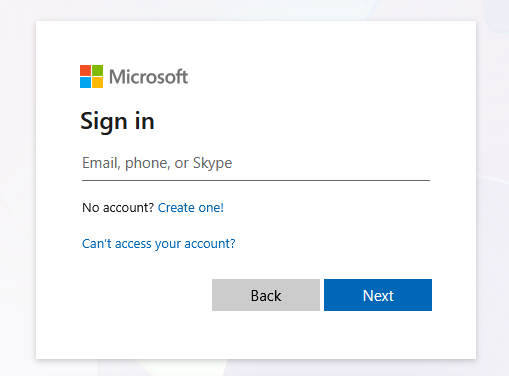
2. The Microsoft Sign in page opens up, enter CUNY email login credentials ( firstname.lastname##@login.cuny.edu ), click Next
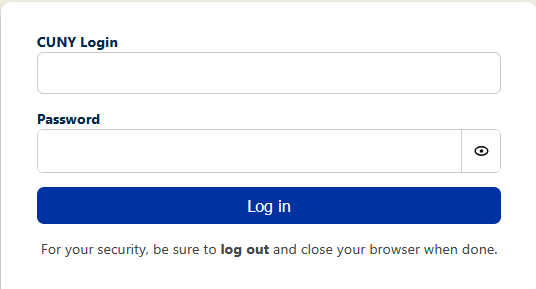
3. The CUNY Login page will open up, enter CUNY login username and password
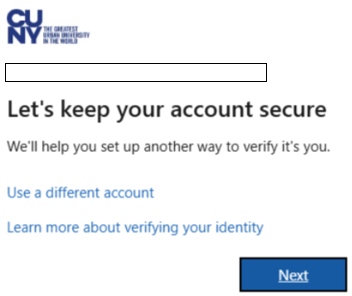
4. Let’s keep you account secure, click Next
On your mobile device
5. If you haven’t, install Microsoft Authenticator on your mobile device, click Next
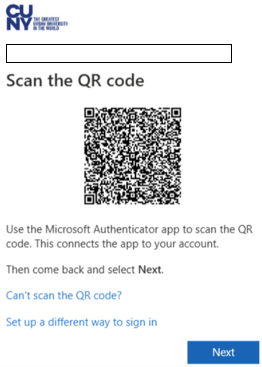
Set up account in app, click Next to get QR code image
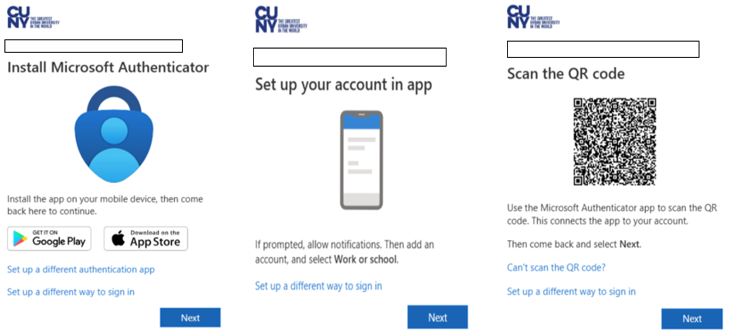
6. Open the Microsoft Authenticator app on your mobile device > click the plus (+) sign top right corner
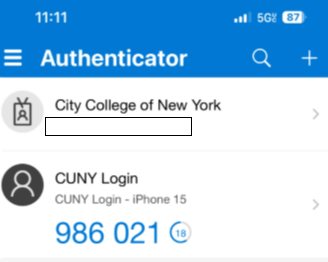
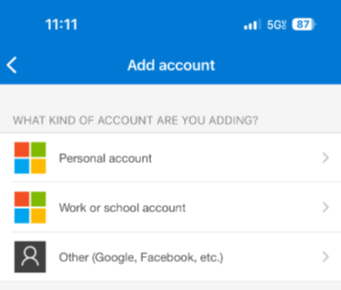
7. Click Work or school account
8. Click Scan QR code
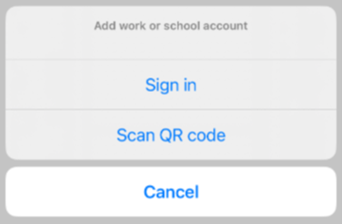
9. With your mobile device, scan QR code shown on computer screen, click Next
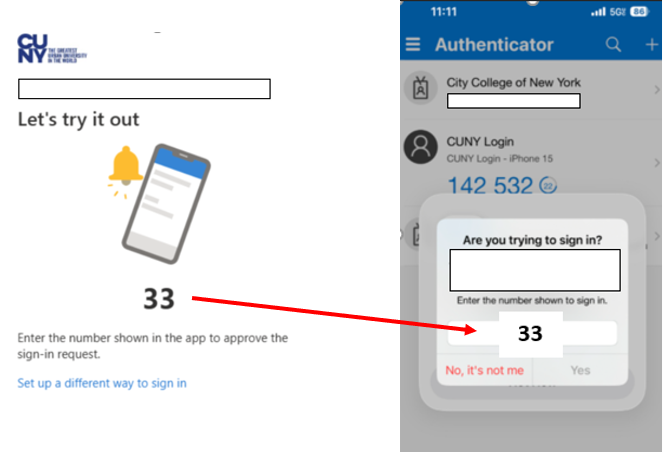
10. Enter two digits # shown on computer screen, to the Authenticator app on mobile device, click Yes
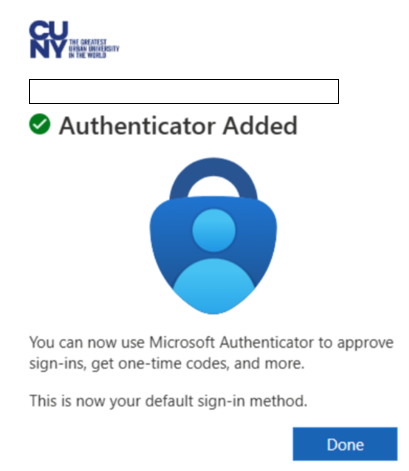
11. Click Done on computer screen
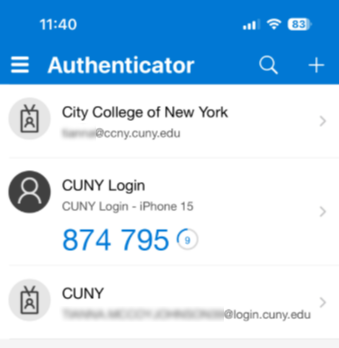
12. On your device the account will be listed as CUNY and your CUNY login username will be displayed at the bottom. DO NOT confuse the CUNY Login MFA with the Microsoft 365 MFA. One is for CUNY applications, the other for Microsoft 365 applications.
Adding CUNY Email to Desktop or Laptop - Windows / MacOS
Windows
Desktop/Laptop – Outlook App - First Account Added
Make sure you have your MFA set up before adding account
1. Click on Outlook app on your laptop or desktop
2. Type in CUNY login username (
first.last##@login.cuny.edu
)
4. Click Connect

4. Enter CUNY Login username and password
5. Click Login

6. You will be prompted to enter the Microsoft 365 MFA
*If you are seeing a number, but the Microsoft Authenticator app on your phone is not allowing you to enter it, contact the servicedesk@ccny.cuny.edu or call 212-650-7878.
*If you have never set up your Microsoft 365 MFA, you will see a “Lets keep your account secure” message, click next follow the prompts.

7. Once you have entered the two-digit code in your Authenticator app on your cell phone and click yes, you will see the following message on your laptop/desktop.
8. Click “No, this app only”

Desktop/Laptop – Outlook App - Additional Email
1. Click on Outlook App
2. Click on File
3. Click Add Account

4. Click on Advance Options, check “Let me set up my account manually”
5. Click Connect

6. Click on Outlook.com

7. Make sure “Use Cached Exchange…” is checked
8. Click Next

9. Click Done

MacOS
Desktop/Laptop – Outlook App
Make sure you have your MFA set up before adding account
1. Click on Outlook app on your laptop or desktop
2. Click on the + Sign, top left corner
3. Click Add Email Account

4. Type in CUNY login username (
first.last##@login.cuny.edu
)
5. Click Connect

6. Prompt for MFA will pop-up
7. Enter 2-digit shown on computer screen into Microsoft Authenticator app on mobile device, click Yes.

*If you are seeing a number, but the Microsoft Authenticator app on your phone is not allowing you to enter it, contact the servicedesk@ccny.cuny.edu or call 212-650-7878.
*If you have never set up your Microsoft 365 MFA, you will see a “Lets keep your account secure” message, click next follow the prompts.
8. CUNY Email has been added, click Skip for now

Desktop/Laptop – Mail Client
How to configure your CUNY M365 cloud email on Mail app on Mac
1. Open the Mac Mail app.
2. If this is your first time using the Mail app, you’ll be prompted to Add an account, otherwise click on Mail tab > Add Account from the menu bar

3. Enter CUNY Login username ( first.last##@login.cuny.edu ), click Continue
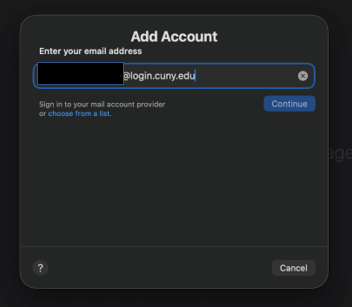
4. Select Microsoft Exchange

5. Enter your name and CUNY Login ID ( first.last##@login.cuny.edu ), click Sign in
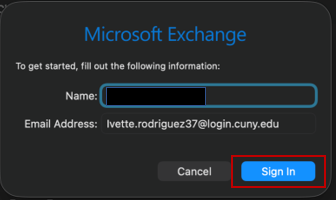
6. Click Sign In when prompted

7. You will be redirected to the CUNY Login screen. Enter you CUNY Login credentials.
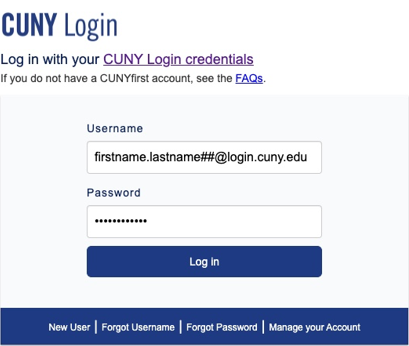
8. Authenticate by entering number shown on the screen to your Authenticator app on your mobile device.

9. Select the apps you want to sync to your Mac. In addition to mail, you can sync your calendars, reminders, contacts, and notes. These will appear in the respective local Mac applications. Click Done.
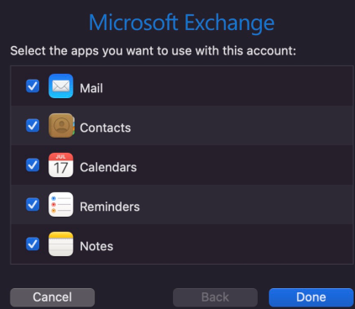
Adding CUNY Email to Smart Devices - iOS (iPhone/iPad) / Android)
Android
Mobile Device - Outlook App
Make sure you have your MFA set up before adding account
1. Tap on Outlook app on your device
2. Tap on Profile picture
3. Tap on the + sign > Add an account
4. Tap on Skip > enter CUNY Login (
first.last##@login.cuny.edu
)
5. You will be prompted to enter MFA*
*See Setting Up MFA (Microsoft Applications) in this page, if you have any issues call 212-650-7878

iPhone
Mobile Device - Outlook App
1. Tap on Outlook app on your device
2. Tap on Profile picture

3. Tap on the envelope+ icon

4.Tap Add an account

5. Tap on Skip > enter CUNY Login ( first.last##@login.cuny.edu ), click Add Account

6. Enter CUNY Login credentials (first.last##) and Password, tap Login in

7. You will be prompted to enter MFA*
Account has been successfully added. You will be redirected to the Outlook App inbox screen. Click on the profile icon, to select the CUNY email box.

Mobile Device - Apple Mail
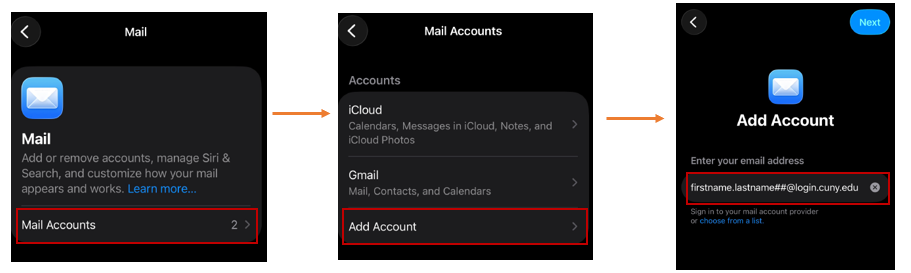
1. Go to Settings, search and tap on Apps
2. Search and tap on Mail

3. Tap on Mail Accounts
4. Tap on Add Account
5. Enter CUNY Login credentials (
first.last##@login.cuny.edu
), tap Next
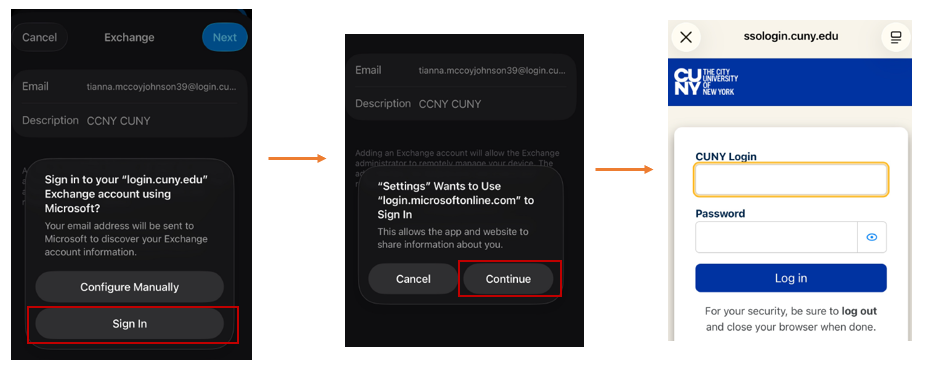
6. Tap on Microsoft Exchange
7. Enter CUNY Login credentials and Description: CUNY email, tap Next

8. Tap Sign In, tap Continue
9. Enter CUNY Login credentials (first.last##) and Password, tap Login in
10. Select which you would like to sync to your mobile device, tap Save

Account has been successfully added. You can now go to the Mail App, click on the profile icon, to select the CUNY email box.
Adding CUNY Email to Devices - Thunderbird
Step 1: Start a new account in Thunderbird
Open Thunderbird and click “Add account.” In the Account Hub window that appears, enter your full name and your CUNY email address, then click Continue.
Thunderbird Account Hub — enter your name and email address
Step 2: Log in with your CUNY credentials
The CUNY Login page will open automatically. Enter your CUNY username and password, then complete the multi-factor authentication (MFA) prompt.
CUNY Login page
Step 3: Choose the Exchange server option
After you sign in, Thunderbird will detect your mail server settings automatically. On this screen, select the option labeled “Exchange” (the one that uses Microsoft Exchange Web Services, not the one marked “Requires add-on”).
Select “Exchange” as your server type
● Click “Edit Configuration” on the right-hand panel.
● Change the Authentication method from “Normal Password” to “OAuth2.”
● Click Continue.
Set Authentication method to OAuth2, then click Continue
Step 4: You're all set
Congratulations — your CUNY email account is now connected to Thunderbird using Exchange Web Services.
Frequently Asked Questions
How will I access my new mailbox on or after August 10th, 2026?
You will use your CUNY Login credentials (
firstname.lastname##@login.cuny.edu
).
Go to https://outlook.office.com
What will happen to my current @ccny.cuny.edu mailbox?
@ccny mailboxes will be transferred to the new mailbox.
Will I be able to change my preferred email address in CUNYfirst?
Your preferred email in CUNYfirst will be updated to your college-branded address. You may choose a different CUNY-associated address as your preferred address, but not an external one.
What will happen to my email address if I make a preferred name change?
Your CUNYfirst login will change when the name change takes effect. According to CUNY, your mailbox/email alias will update automatically.
What if I have multiple campus affiliations?
Email sent to any of your CUNY email addresses will be delivered to your new mailbox.
What if I am a student and a CUNY employee?
You will have one CUNY mailbox. CCNY IT recommends that you create folders and rules within your mailbox to manage your different types of email (student versus employee).
Will my CCNY network credentials be impacted?
No. This transition will have no impact on your local CCNY network credentials.
How do I configure my device, to add new mailbox?
The following instructions will assist you
Will all our calendar appointments be transferred?
Yes, calendar appointments will be transferred as well.
Will shared/departmental email accounts be transferred and remain available?
Yes, shared or departmental email accounts are being transferred to Microsoft 365 with the corresponding permissions - you will not need to do anything.
Will the rules I’ve set up in my inbox transfer as well?
Yes, rules will be transferred.
What is the size limit for email attachments in Microsoft 365?
The size limit for attachments is 35 MB.
Will I still be able to use mail merge?
Yes, to send emails to a large number of recipients, senders can use mail merge functionality with content from Microsoft Word.
Why do I need to set up Microsoft MFA?
Microsoft multi-factor authentication (MFA) provides additional security and privacy when using CUNY Login credentials to access Microsoft 365 applications. Although similar to the CUNY Login MFA used when logging into other CUNY and college applications like CUNYfirst and Brightspace, Microsoft MFA is only used when accessing your new CUNY email account and Microsoft 365 applications.
How do I set up Microsoft MFA?
For information on setting up your Microsoft multi-factor authentication (MFA), see CUNY Microsoft Login MFA Set Up.
What email information will CUNY copy to my new CUNY email account?
- Emails: All email content, including folder structure and attachments.
- Calendars: Events, attendees, and recurrence patterns.
- Contacts: User contact information.
- Email Rules: Mail redirects, blocking rules, and other mailbox rules.
- Auto-reply Settings: Out-of-office replies and other automatic response configurations.
- Time Zones: Preserves the correct time zone settings for the mailbox.
What is Not Copied (Limitations):
- Encrypted Emails: Cannot be detected and are migrated unreadable.
- Folder Permissions: Permissions for folders are not preserved during the migration.
- Reference Attachments: Links to documents on OneDrive (like OneDrive for Business) are not preserved.
- Scheduled Emails: Future-scheduled emails are copied as drafts, not with their scheduled send time.
If you have multiple college affiliations, it may be helpful to set up a separate folder for each college email address and establish rules in your new CUNY email account to automatically move auto-forwarded messages into the corresponding college folder. See Managing Multiple Email Addresses on this SharePoint site and Set up rules in Outlook on the Microsoft website for more information.
Email Content: We have completed copying email content for all users who were listed as Active in CUNYfirst. Most users should now have their email content available in their new CUNY mailbox.
Retirees: Retirees have also been migrated, with the exception of retirees who have not updated their CUNYfirst password. If you are a retiree who has not yet updated your CUNYfirst password, please update your password and then contact the OIT Service Desk to complete your email migration.
Departmental Service Accounts & Shared Calendars: Most departmental service accounts and shared calendars have been migrated and their content copied. If you previously had access to a departmental service account, please make sure you add the account to your Outlook profile. In Outlook, go to Settings → Accounts → Shared with Me → Select Add. For shared calendars, open Calendar in Outlook, select Add calendar → Add from directory → Search and select Add.
Distribution Lists: Migration of distribution lists is still in progress. Many lists are functioning, but we have received reports that some lists are not yet working properly. We are working with CUNY to resolve these issues.
Hardware Tokens: If you use a hardware token for authentication and have not yet registered it with CUNY, please contact the OIT Service Desk for assistance. Please have your hardware token handy.
Microsoft Outlook App: We are aware of an issue with some versions of Outlook that may retain the old CCNY mailbox information. When attempting to add the new CUNY mailbox, Outlook may indicate that the account already exists. If you experience this issue, follow the troubleshooting instructions. or contact the OIT Service Desk for assistance. In the meantime, we recommend using Outlook on the web to access your email.
Setting preferred email in CUNYfirst
- Login: cunyfirst.cuny.edu
- Click on Employee Self Service
- Click on Personal Details
- Click on Contact Details
- Under the Email field, click on Business, from the dropdown select @ccny.cuny.edu, click Save. Make sure preferred is checked.
Getting Help


Last Updated: 10/29/2026 12:25